

How to Get Started with Page Lens
Learn how to connect Page Lens and instantly access page-level Search Console data, including clicks, rankings, queries, and indexing status.
- Page Lens
- Google Search Console
Welcome, and thanks for installing Page Lens.
Page Lens is a Chrome extension that lets you view Google Search Console data directly on the page you're viewing. Instead of opening Search Console, finding the right property, filtering a URL, and navigating reports, you can open a sidebar and instantly see how that page is performing in Google Search.
See clicks, impressions, CTR, average position, top search queries, indexing status, and traffic trends without leaving the page.
Whether you're an SEO professional, content marketer, agency, freelancer, blogger, publisher, or website owner, Page Lens helps you access page-level search insights where you're already working.
This guide takes you from installation to your first page analysis in just a few minutes.
What Is Page Lens?
Page Lens brings Google Search Console insights directly into your browser.
Open any page on a website connected to your Search Console account and instantly view:
- Clicks and impressions
- CTR (click-through rate)
- Average position
- Top search queries
- Indexing status
- Historical traffic trends
The goal is simple: stop switching between your website and Google Search Console every time you want to know how a page is performing.
Instead, open the page and get the answer instantly.
What You'll Need
- A Google account with Search Console access. Page Lens displays data Google already provides through Search Console. It doesn't create, collect, or track anything new.
- A website property verified in Google Search Console. Page Lens only works on sites you have access to in Search Console.
That's it. No new account, no complicated setup, and no dashboards to learn.
Step 1: Connect Your Google Account
The first time you open Page Lens, you'll be asked to connect your Google account.
Click Connect Google Account and follow Google's sign-in flow.
Google will request permission to:
View Search Console data for your verified sites
That's all Page Lens needs. It only has permission to read Search Console data and cannot make changes to your account, website, or Search Console properties.
Which Account Should You Choose?
When you connect, Google will show a list of available accounts.
Simply select the account that has access to your Search Console properties.
If you later realize you've connected the wrong account, you can disconnect and reconnect Page Lens at any time and choose a different Google account.
Step 2: Open One of Your Pages
Visit any page on a website connected to your Search Console account.
This could be:
- A blog post
- A landing page
- A product page
- A category page
- A documentation page
Next, click the Page Lens icon in your Chrome toolbar.
The sidebar will slide in from the right and begin loading data for the current page.
Within a moment, you'll see search performance data pulled directly from Google Search Console.
Pro Tip
Pin Page Lens to your Chrome toolbar so it's always one click away.
Click Chrome's Extensions icon, find Page Lens, and click the pin icon.
Step 3: See How Your Page Is Performing
Here's what you'll find inside the sidebar.
Choose Your Time Window
At the top of the sidebar, a small switch lets you pick 7 days or 28 days. Your choice sets the period for everything below it: the metrics, the chart, and the comparison. It starts at 28 days and remembers your choice for next time.
Clicks
The number of users who clicked through to your page from Google Search.
Impressions
The number of times your page appeared in Google Search results.
CTR (Click-Through Rate)
The percentage of impressions that turned into clicks.
Average Position
The average ranking position of your page across all search queries.
Each metric also includes a comparison with the previous period of the same length, making it easy to see whether performance is improving or declining.
Check Indexing Status
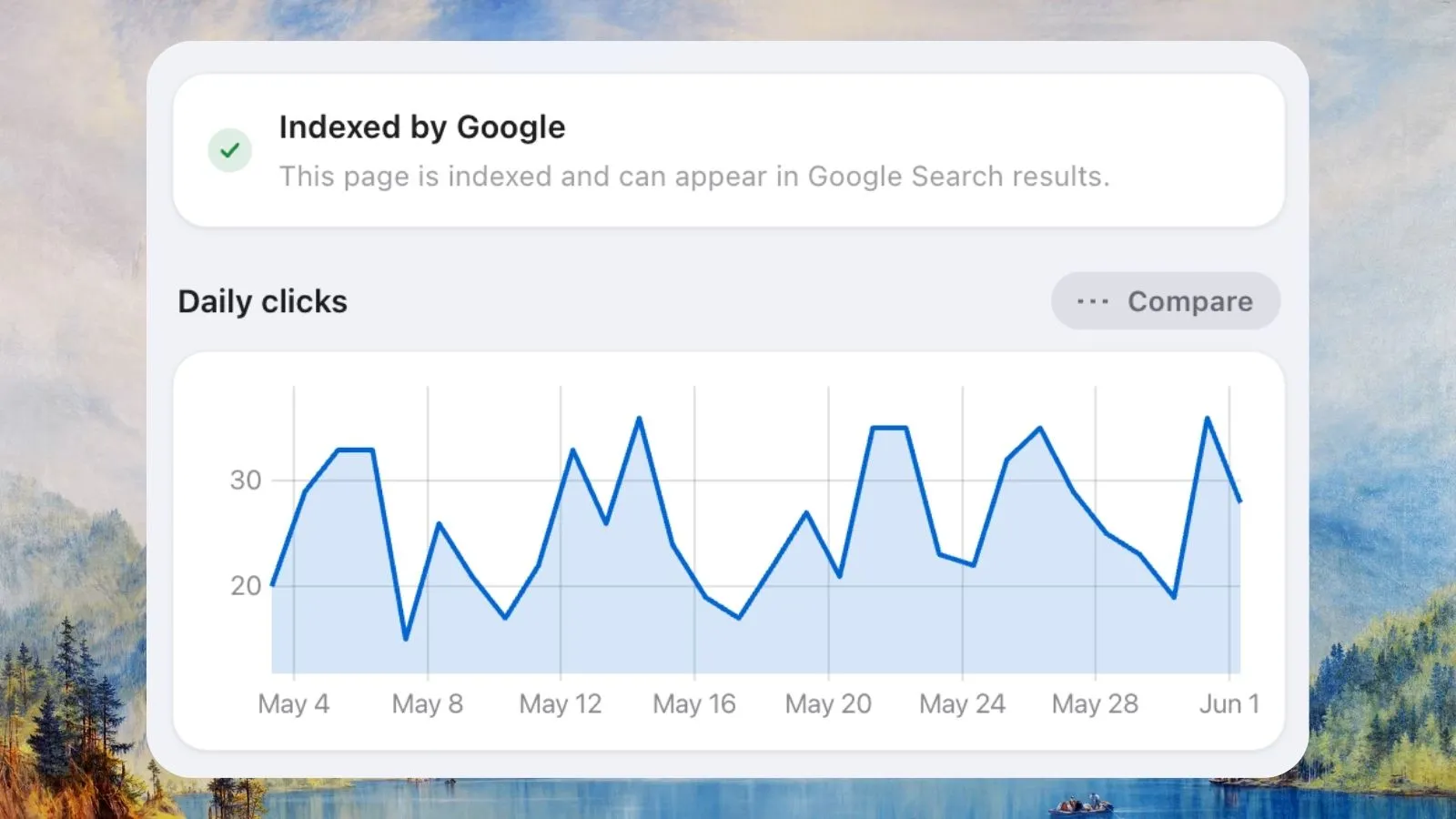
Page Lens shows whether Google has indexed the page you're viewing.
Possible statuses include:
- Indexed by Google
- Not Currently Indexed
- Partially Indexed
- Not Indexed
This is often the fastest way to identify pages that aren't appearing in Google Search as expected.
Review Traffic Trends
The traffic chart displays daily clicks for the time window you selected.
You can optionally compare the current period against the previous period of the same length to see whether visibility and traffic are moving up or down.
This makes it easier to evaluate the impact of content updates, SEO changes, and new publications.
Discover Top Search Queries
One of the most useful sections in Page Lens is the query report.
You'll see the search terms that bring visitors to the current page, along with their clicks and impressions.
Use this data to:
- Identify high-performing keywords
- Find opportunities to improve rankings
- Discover topics worth expanding
- Spot queries with strong impressions but low CTR
You can also sort the table to quickly surface hidden opportunities.
Open the Full Report in Search Console
Need more detail?
Page Lens includes a shortcut that opens Google Search Console already filtered for the current page.
That means you can jump directly into deeper analysis without manually finding and filtering the URL.
A Few Things Worth Knowing
The Numbers Focus on This Page, Not the Whole Site
Page Lens counts your selected period up to the most recent day this page got any traffic. So you always see how the page itself has been doing lately.
Search Console works differently: it picks one end date for your whole site and uses it for every page. On a quieter page, that can add empty days at the end. By staying close to the page you're looking at, Page Lens gives you a clearer picture of how it's really doing. A label shows the exact end date, so there's no guessing.
Search Console Data Is Delayed
Google Search Console data is typically delayed by a couple of days.
Page Lens shows complete reporting windows rather than partially processed recent days, helping ensure the numbers are accurate.
New Pages May Not Have Data Yet
If a page was recently published or receives very little search traffic, there may not be enough data available yet.
This is normal and doesn't necessarily indicate a problem.
Domain Not Verified
Page Lens can only display data for websites you have access to in Google Search Console.
If a site isn't verified in your account, Page Lens won't be able to retrieve data for it.
Some Pages Don't Support Extension Sidebars
Chrome's own pages, browser settings, and the Chrome Web Store don't allow extensions to inject sidebars.
When this happens, Page Lens will let you know and provide alternative options where possible.
Your Data Stays Yours
Page Lens retrieves data directly from Google's APIs and displays it locally in your browser.
Your Search Console data never passes through our servers.
The only information we use is what's necessary to manage your free trial and license status.
Your Free Trial and Lifetime Access
Page Lens includes a free 7-day trial with full access to all features.
No credit card required.
Your trial begins when Page Lens successfully retrieves real Search Console data for the first time.
After the trial ends, a one-time payment of $20 unlocks lifetime access.
No subscriptions. No recurring fees. No monthly plans.
Once purchased, you'll receive a license key that can be activated directly within Page Lens.
Your license works across your devices and remains yours permanently.
If Something Looks Off
| If you see... | Try this |
|---|---|
| The sidebar doesn't open | Make sure you're on a normal website page, then refresh and try again. |
| Domain not verified | Confirm the website exists in Google Search Console under the account you connected to Page Lens. |
| Couldn't verify your access | Usually a temporary connection issue. Click Try Again and retry. |
| No data on a page you know receives traffic | Check the indexing status and remember that Search Console data is delayed by a couple of days. |
| The wrong account's data | Disconnect your Google account in Page Lens, reconnect, and choose the account that has access to the correct Search Console property. |
Frequently Asked Questions
Does Page Lens replace Google Search Console?
No. Page Lens uses Google Search Console data and makes it easier to access page-level insights while browsing your website.
What metrics does Page Lens show?
Page Lens displays clicks, impressions, CTR, average position, indexing status, traffic trends, and top search queries for the current page.
Does Page Lens store my Search Console data?
No. Data is retrieved directly from Google and displayed locally in your browser.
Who is Page Lens for?
Page Lens is built for SEO professionals, content marketers, agencies, freelancers, bloggers, publishers, and website owners who regularly use Google Search Console.
You're All Set
Open one of your pages, click the Page Lens icon, and instantly see how it's performing in Google Search.
That's the entire idea behind Page Lens: making Search Console data available where you're already working, so checking page performance becomes part of your workflow instead of another task on your list.

About Navaneeth
Navaneeth builds clean, well-crafted digital products, from pixel-perfect interfaces to robust backend systems. When he's not coding, he's usually lost in music.